(The following post works under the assumption you're using SATA hard drives and Windows 7. Don't worry about master/slave configurations, I believe for the most part it is largely a relic not needed for the average home-PC user)
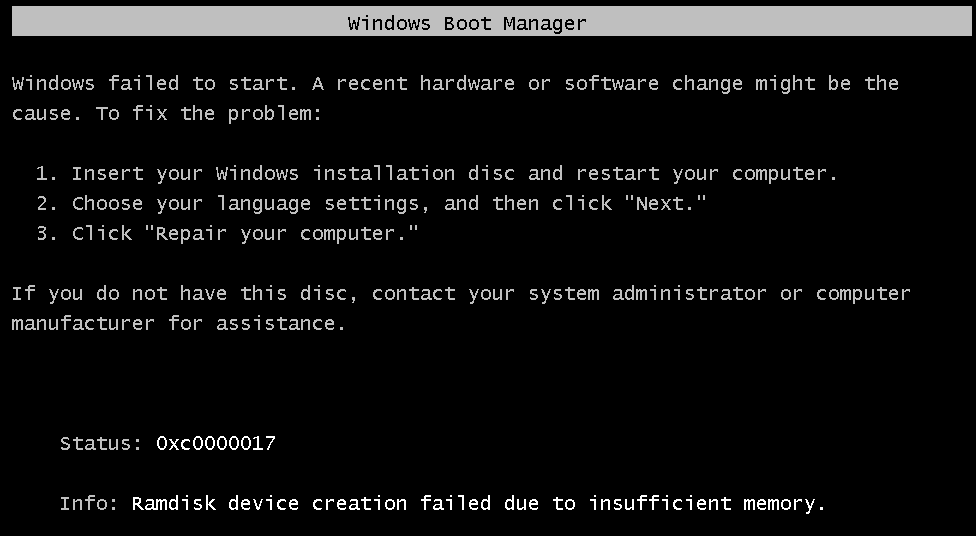
If you're like me, you'd use something like a dying hard drive as an excuse to get inside the guts of your computer, dust it out as much as possible, re-arrange and re-organise the cables, and plug everything in so it's neat and tidy for better air-flow. If you're not like me... you should probably do that at some point (unless you're of those people who spends more time with cable management and routing when first setting up a compute than you do actually playing with your brand new toy... then carry on), it's healthy. But if you're also like me (or again, if you're not, and just found yourself doing what I did) and you move other hard drives around, and the cables, and you plug it all back in, in an order that it wasn't originally in, you may find that when you go to boot up that your computer is throwing up the lovely "NTLDR is missing" error. This means, as simply as possible, that your BIOS can't find Windows/An Operating System.
 |
| https://blogger.googleusercontent.com/img/b/R29vZ2xl/AVvXsEgKj_kDrJphnDfDGhU3WtazsCqBOUaXihf4pSNUbu4jcmaYKzKnNGTl2E_9coLc2RjOglOah2xqvyAyxPLW29M5SnYJjen9XMjb5YPmAR90YEgQWr6ORCLPnyNixNJvn6zxv57EAyWc-ek_/s640/ntldr+missing+Sebastiano.jpeg |
Don't panic.
I know you might be thinking: 'uh oh, did I break a cable? Did I accidentally wipe a hard drive with magnets? Static shock? ANOTHER DEAD HARD DRIVE?!!?'; but truthfully speaking the error is 99% of the time benign in a situation like this, so don't panic. What you need to do, if you have more than one hard drive, is identify which one contains your Operating System. If you're like me, you put a note on each hard drive so you know what it contains, and so you can identify it easier in BIOS. If you didn't do that, maybe you at least memorised the part number of the hard drive so you can cross reference it. If you didn't do that... we'll you've got some detective work to do.
But don't panic.
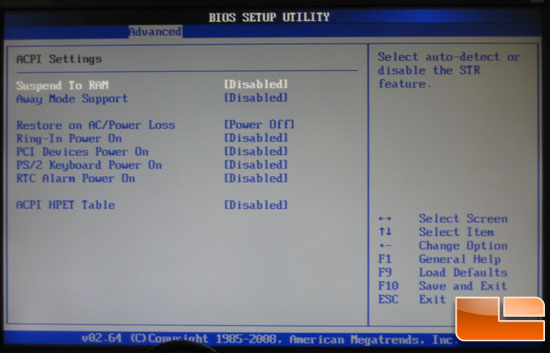
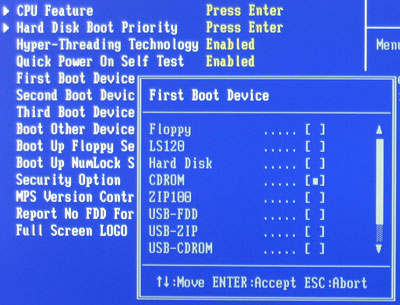
First things first: check that all the power cables are connected properly, and re-seat the SATA/IDE cables if you have to. The next part is easy: All you got to do is get into your BIOS, and re-arrange your boot priority so that a
hard disk comes first. And then, you'll need to go into another menu to make sure the BIOS attempts to load the hard drive with your Operating System on it. Depending on your BIOS, this could be all in one, or require multiple menus. It varies...
 |
| http://www.techpowerup.com/articles/34/images/bootcdrom.jpg |
 |
| http://t1.gstatic.com/images?q=tbn:ANd9GcRB02N85krVcrDmiwtfdYfRLsmNTxs_YicIQRdu8xzyHIeFy9hqq4cUf_O4 |
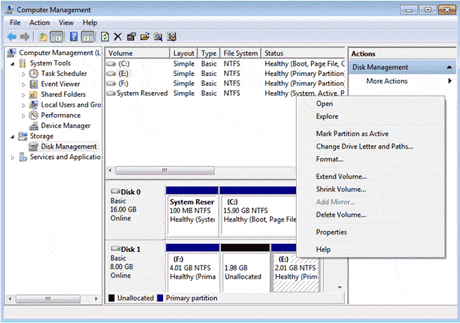
Alright, now that we've done that, we shouldn't be getting the NTLDR error anymore... success! Except... oh wait, you're missing a partion or two... this is a little bit trickier than the previous steps, but thankfully if you're using Windows 7, it's simplified. You need to open up a tool kit called Disk Management (it's in control panel, under Administrative Tools), but in Windows 7, you can just type 'disk management' into the search bar in the start menu, and it will bring it up... handy. It will look like this:
 |
| http://www.partition-tool.com/images/resource/win7-extend3-b.gif |
If you keep your My Computer screen open with a list of the active partitions, you should be able to easily identify what's no longer showing up. Simply right click that partition in Disk Management, and click 'Change Drive Letter and Path', and then pick a letter. And it should, now be accessible to you. Hopefully it works out for you, because this is the process I went through to get some partitions back.